How to Convert a PNG to EPS, SVG or PDF with the PremiumPNG Converter
Turn a PNG or JPG into an editable vector in a few seconds - real vector shapes on an artboard with the size of your picture, ready for Illustrator, CorelDRAW, Affinity Designer and Inkscape.
What the PNG to EPS converter can do
The converter traces your picture into real vector shapes (paths), places them on an artboard of the same size and saves an EPS, SVG or PDF with the name you choose.
- PNG, JPG and JPEG up to 25 MB
- EPS, EPS 10 (Illustrator), SVG and PDF
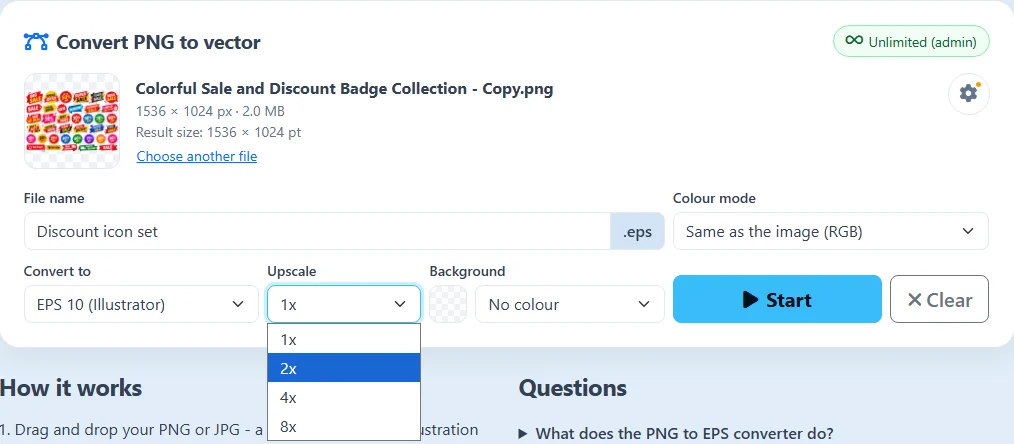
- Upscale 2x, 4x or 8x
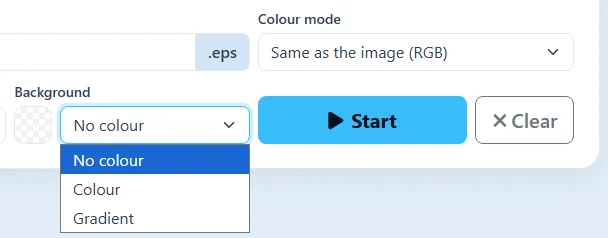
- Transparent, colour or gradient background
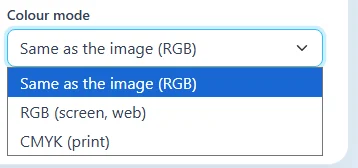
- RGB or CMYK colour mode
- Normal, More or Maximum anchor points
- Ungrouped, editable shapes
- Converted in your browser
1Open the converter and add your picture
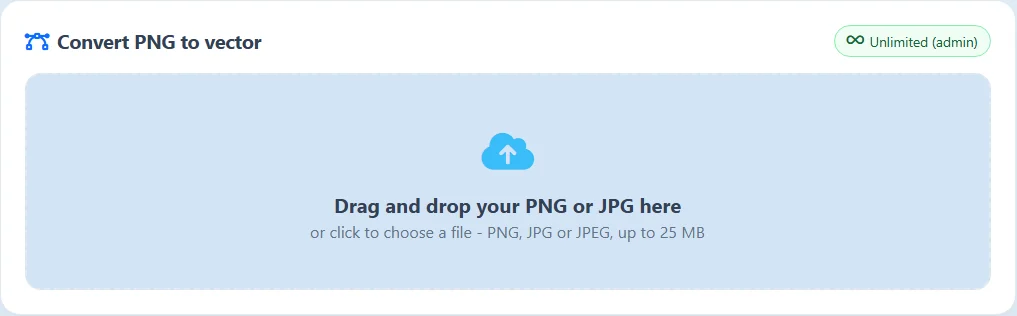
Open the PNG to EPS converter (PNG to EPS in the menu) and log in. Drag and drop your picture into the blue box, or click it to choose a file:
- PNG - keeps its transparent background (best for logos, icons and clipart).
- JPG / JPEG - has no transparency.
- Up to 25 MB.
Your remaining conversions are shown at the top right of the box.
2Check the picture and name the file
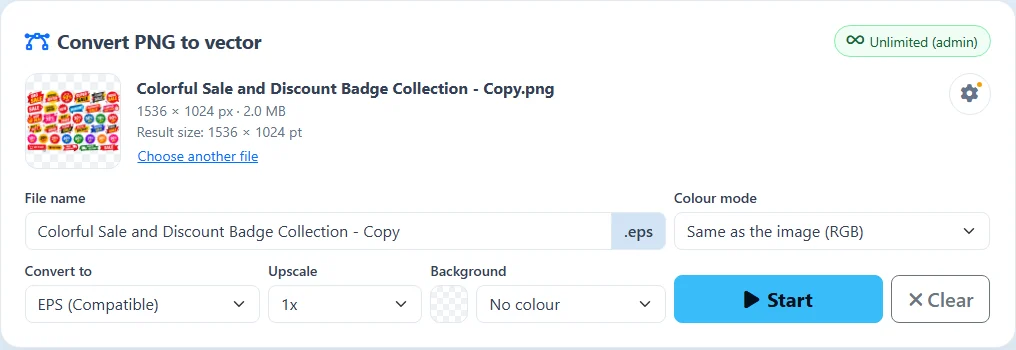
The converter shows a thumbnail, the size in pixels, the file size and the Result size in points (1 px = 1 pt). Choose another file replaces the picture.
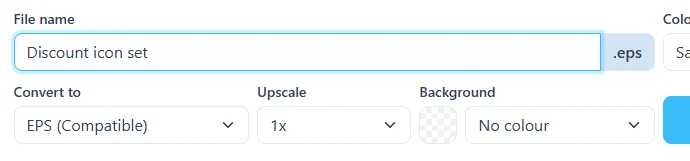
The File name is the name of your PNG. Type a new name if you like - here Discount icon set. The extension (.eps, .svg or .pdf) is added for you.
3Choose the vector format
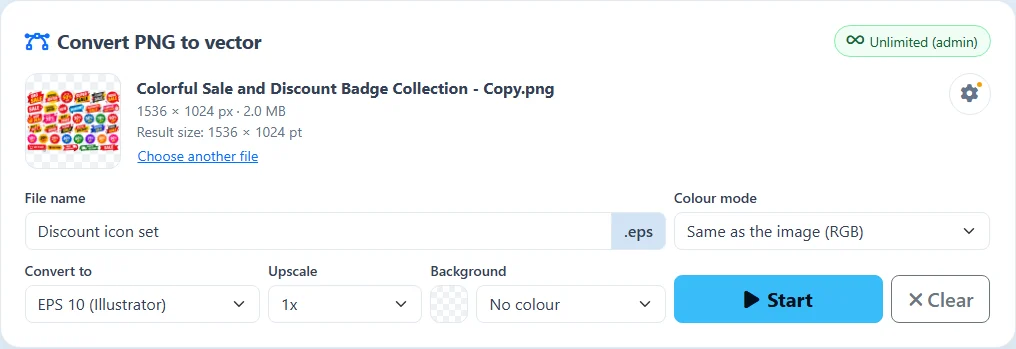
Under Convert to choose the file type:
- EPS (Compatible) - selected automatically. A standard EPS that opens in all programs.
- EPS 10 (Illustrator) - an Illustrator 10 EPS: every object opens separately editable in Adobe Illustrator.
- SVG - a vector for websites.
- PDF - a vector PDF for printing.
4Upscale, background and colour mode
- Upscale 1x, 2x, 4x, 8x - makes the vector bigger with its proportions kept (like Shift + resize). A vector stays sharp at every size. The Result size shows the new size.
- Background - No colour (transparent), one Colour, or a Gradient (linear or radial) behind the artwork.
- Colour mode - Same as the image, RGB for screens and websites, or CMYK for printing.
5Conversion settings and anchor points
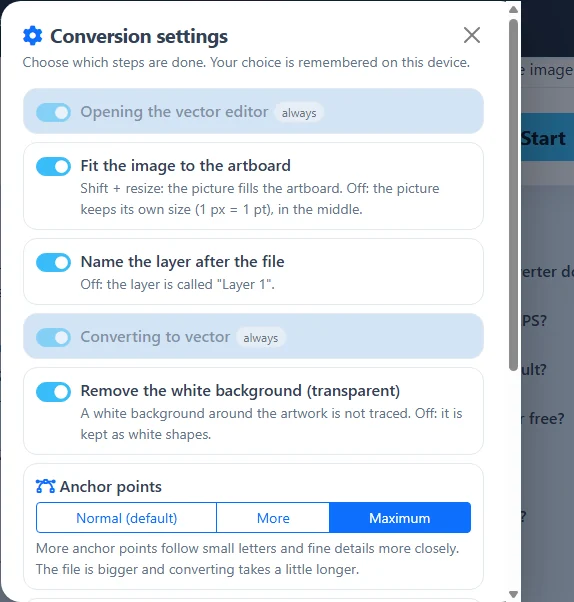
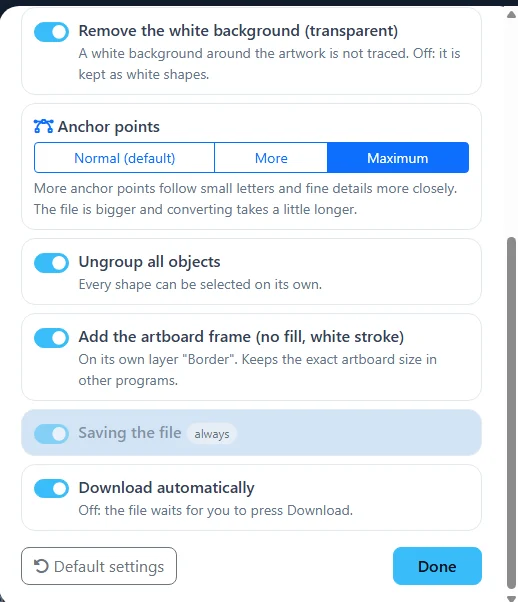
The ⚙ gear at the top right opens the Conversion settings. Switch the steps on or off: fit the image to the artboard, name the layer after the file, remove the white background, ungroup all objects, add the artboard frame and download automatically. Your choice is remembered on this device; an orange dot on the gear shows that something differs from the default.
Anchor points sets how closely the shapes follow the picture:
- Normal (default) - best for most pictures.
- More / Maximum - for small letters and fine details. The file gets bigger and converting takes a little longer.
Default settings brings everything back.
6Press Start and watch the progress
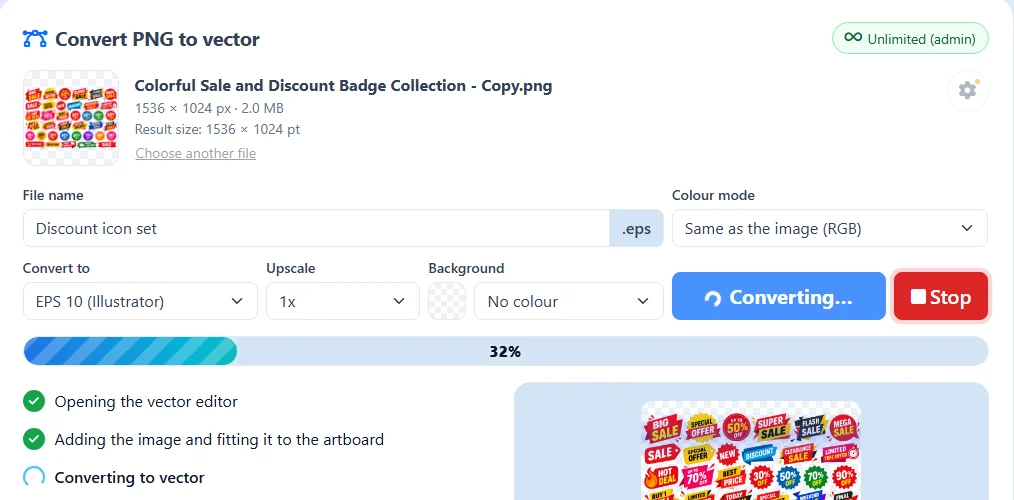
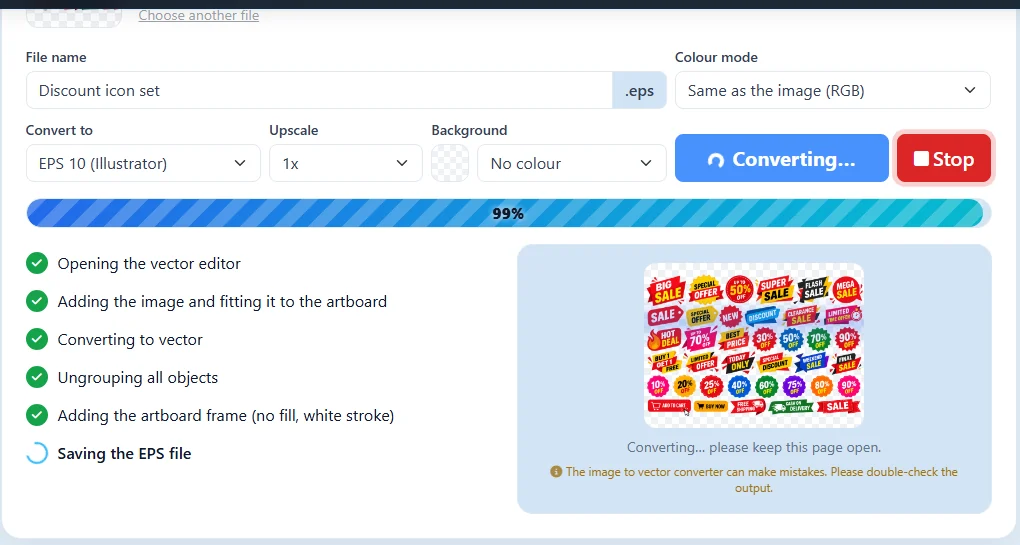
Press Start. The progress bar and the list show every step: opening the vector editor, adding the image to the artboard, converting to vector, ungrouping, adding the artboard frame and saving the file. Keep the page open while it works - a big picture can take a little while.
Stop cancels the conversion at any time.
7Download and check your vector
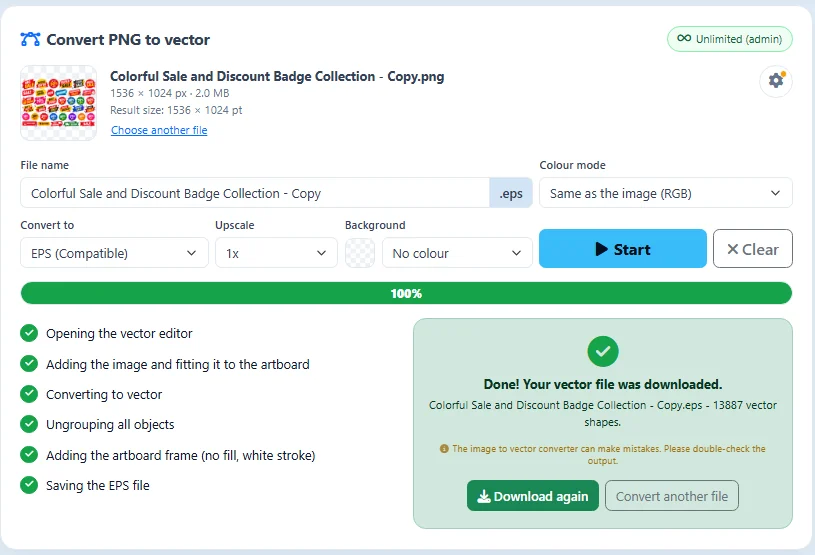
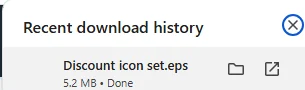
When it is done, the file is downloaded automatically with the name you gave it - here Discount icon set.eps. Download again gets it once more, and Convert another file starts over.
The converter works automatically and can make mistakes. Always open the result in Adobe Illustrator, CorelDRAW, Affinity Designer, Inkscape or our online Vector Editor and check it before you use it.
All settings at a glance
Every setting is in the converter box or behind the ⚙ gear.
| Setting | Where | What it does |
|---|---|---|
| PNG · JPG · JPEG | File | up to 25 MB; a PNG keeps its transparency |
| File name | Box | the name of the downloaded file |
| EPS (Compatible) | Convert to | a standard EPS for all programs |
| EPS 10 (Illustrator) | Convert to | every object separately editable in Illustrator |
| SVG · PDF | Convert to | vector for websites or printing |
| 1x · 2x · 4x · 8x | Upscale | a bigger vector with the proportions kept |
| No colour · Colour · Gradient | Background | transparent, one colour or a gradient behind the artwork |
| RGB · CMYK | Colour mode | for screens or for printing |
| Normal · More · Maximum | ⚙ Anchor points | how closely the shapes follow the picture |
| Start · Stop | Box | start or cancel the conversion |
